







At first look, setting up a Google Business Profile (formerly known as Google My Business) seems pretty straightforward. That is until you’ve registered but aren’t able to make changes to your GBP straight away. So, what gives?
Well, verification. It’s a pain, we get it. But until you prove who (and where) you are, you won’t be able to do any of these things:
- Edit your business information across Google (e.g. Search and Maps), including business hours
- See your GBP insights
- Upload images
- Respond to online reviews about your business
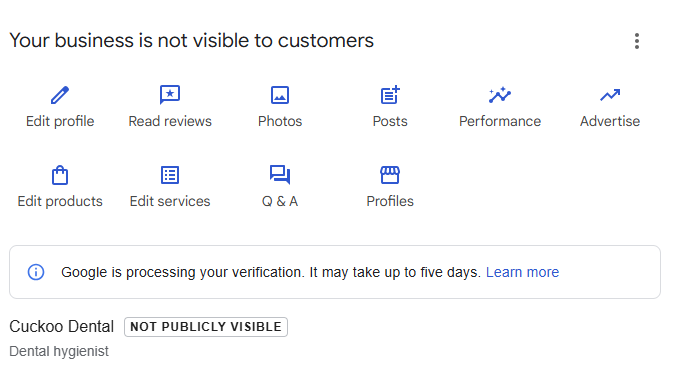
The Google Business Profile verification system ensures that only authorized representatives of the business, and genuine businesses, can create and manage listings, which ultimately safeguards your business.
In this guide, we’ll explain how to verify your Google Business Profile, the different verification methods Google may suggest, and what to do if you run into challenges along the way.
Is my business verified on Google Business Profile?
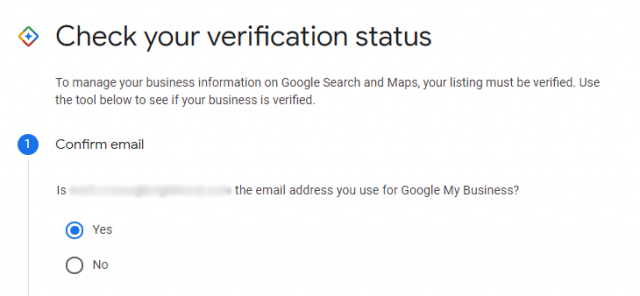
You can check if your business is verified by logging in to your Google Business Profile. If your listing is verified, you’ll see the dashboard and have access to all features. If your listing isn’t verified, you’ll see a button to Get Verified.
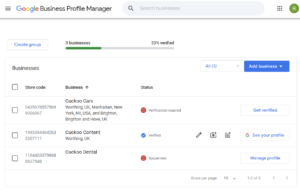
Or, you may be offered no verification options and instead, see a message saying that someone else has verified that profile:
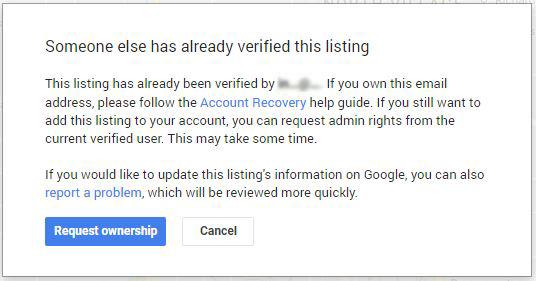
If you see this image, you’ll need to use the ‘request ownership’ option to send an email to the other party asking them to contact you. That person can then confirm or deny your request.
If the present owner doesn’t reply, your ownership request email will contain a link that will then walk you through a verification process.
How do I verify my Google Business Profile?
If you haven’t yet verified your GBP, you’ll need to click ‘Get Verified’ to start the process.
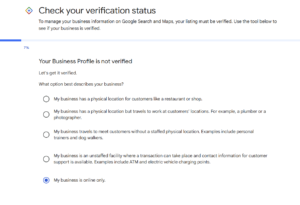
Google will ask if you have a physical location or if you are a service-area business that travels to customers (or offers both!) If your business is online only, choosing this option will likely lead to your Profile being suspended because online-only businesses aren’t eligible for a local Google listing.
Google Business Profile verification methods
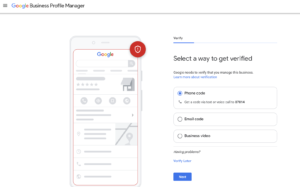
When you have claimed your listing, Google will present you with appropriate verification methods, which may include via email, phone, or video. In the past Google heavily favored verification by postcard, but this is pretty rare today. Video call verification is also less commonly seen, and may be more likely to be offered as a second choice by Google’s support team after having problems with verification.
The only way to find out what your available options are is to claim your listing and proceed to the verification stage. There doesn’t seem to be a lot of rhyme or reason to which types of businesses are offered the different verification options, though service area businesses may be less likely to be offered video verification.
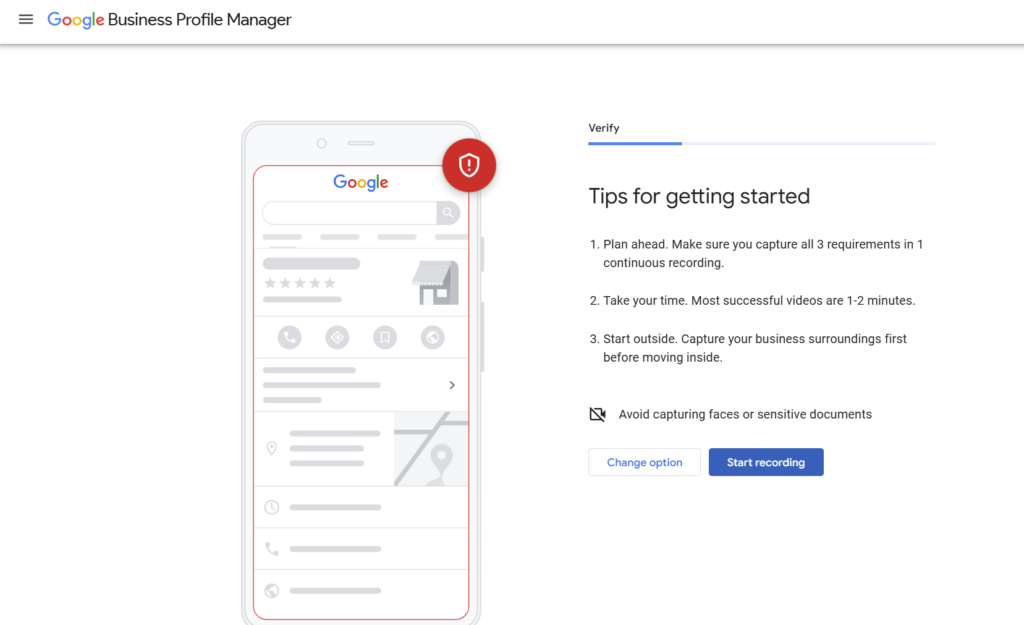
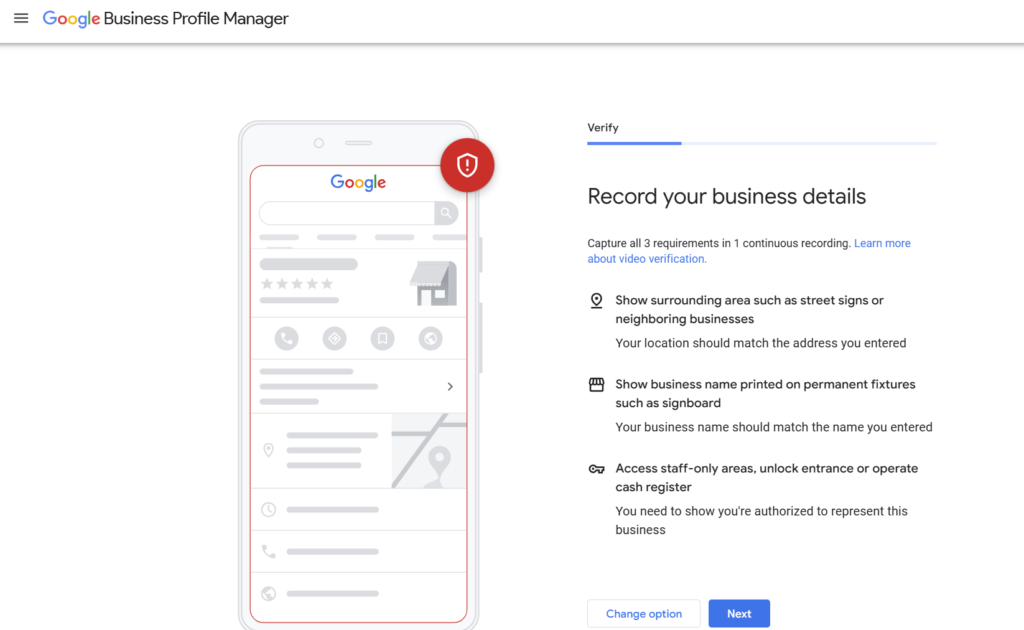
Verify with a video recording:
- Log in to Google Business Profile and click ‘Verify’ you must be at your business location).
- Click the video option
- If you are verifying from your computer, scan the QR code with your phone to begin taking a video
- Your video will need to include your business location (try to film signage, street signs or neighboring businesses), the business itself, and proof of management (e.g. entrance into staff-only areas, or video yourself unlocking the premises or opening the cash register). Google claims the most successful videos are 1-2 minutes long, and must last at least 30 seconds.
- End the recording and upload your video. You can review the recording to ensure you’re happy with the clarity and accuracy before submitting.
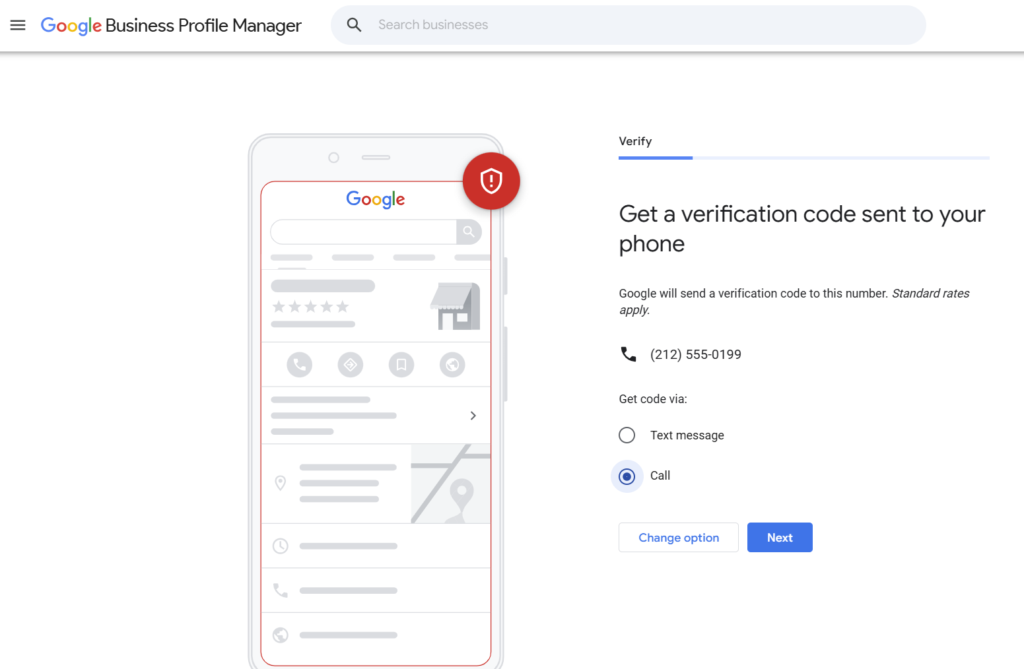
Verify over the phone:
If your business is eligible for phone verification, you’ll see a phone option when you click ‘Verify’.
- Log in to Google Business Profile and click ‘Verify’.
- Click the associated phone number, and choose if you’d prefer a text or call.
- The five digit code will be sent via an automated phone call or text message.
- Return to Google Business Profile and enter the code you were given.
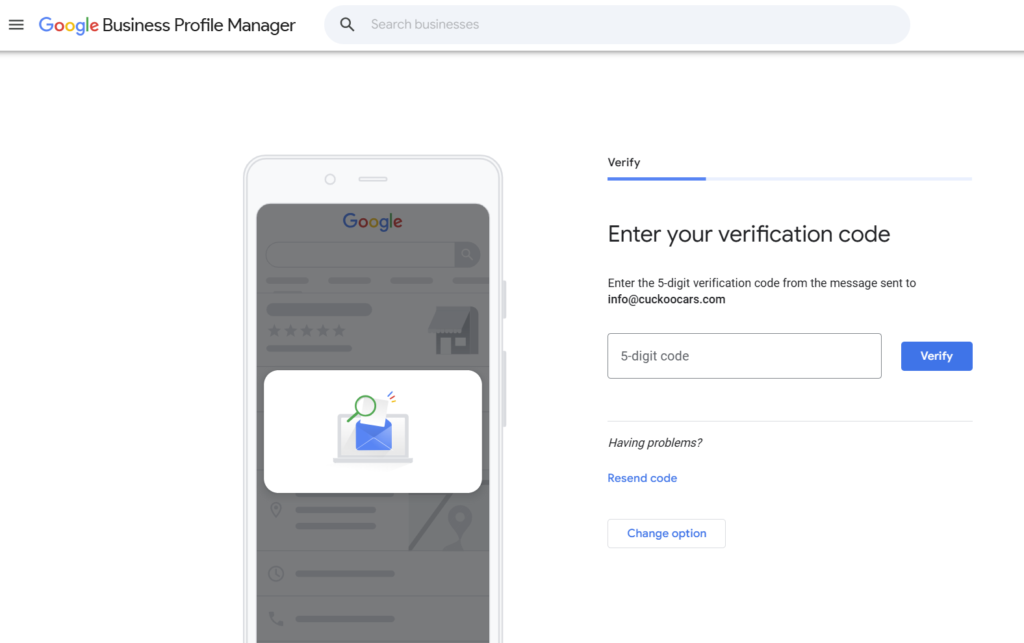
Verify via email:
Some businesses may be given the option to verify by email, rather than a postcard.
- Log in to Google Business Profile and click ‘Verify’.
- If you see the email option, click this.
- Go to your email and follow the instructions provided in the message from Google.
Verify with a video call:
- Log in to Google Business Profile and click ‘Verify’ (you must be at your business location).
- Select the video call option.
- Click start call.
- A text window will open with a customer support representative, and they will walk you through how to join the live video call.
- You’ll then need to follow their instructions, which will usually be similar to the pre-recorded video guidelines (e.g. show signage or business cards, prove you work there by opening the cash register)
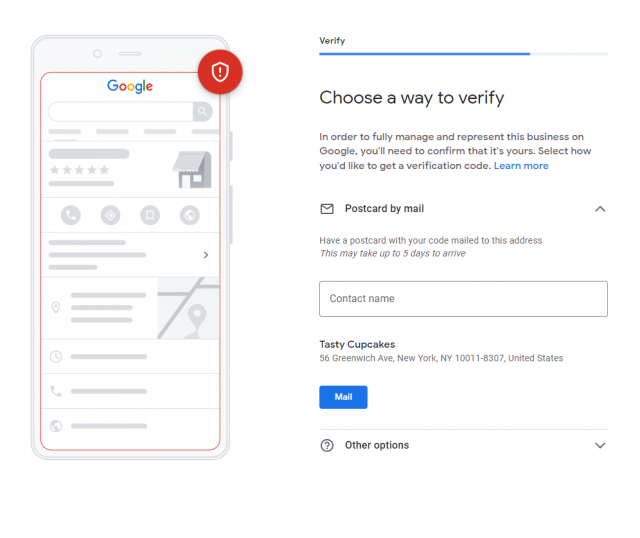
Verify with a postcard:
- Log in to Google Business Profile and click ‘Verify’.
- Ensure your address is entered accurately, with full street name and zip code.
- Include your floor, suite, or building number.
- Add a contact name.
- Click ‘Request Postcard’.
- Wait for your postcard to arrive, then log back into Google Business Profile and enter the verification code. This code will expire after 30 days so it’s advisable to verify as soon as possible after you receive the postcard.
Bulk verification for multiple locations
For businesses with 10 or more locations (such as a chain of stores or restaurants), there is also a bulk verification option. If you’re eligible for this option, you’ll have a Verifications tab on Google’s Business Profile Manager, with a Chains option to kick off bulk verification.
How long does Google Business Profile verification take?
The time required for Google Business Profile verification depends on the method of verification. Google claims verification takes up to five business days, though it can take longer. Verification may be completed by Google’s automated system, or it may require a manual review which can take longer.
In some cases, Google will allow instant verification. This may happen if your business is already verified in Google Search Console or if you use bulk verification.
If verifying by email, the email should arrive right away but you’ll also need to allow up to a week for manual verification to then take place.
For video verification, once your video is uploaded it should take around five days for the video to be reviewed by Google.
Other methods of verification vary—the postcard for example takes around a week to arrive on average but it can be longer if the postal service is busy. Google will then need around one week to manually verify.
If you’re given the option to verify via live video call, you’ll need to check the support hours for your region and then join the line to speak to an advisor, all of which can be frustrating when you’re ready to take control of your local SEO and optimize your Google Business Profile.
You may also find that this process can be more complicated when you are verifying multi-location business listings. Fortunately, additional features, functions, and support are available.
What happens if I fail Google Business Profile verification?
If your verification attempt fails, don’t panic. In most cases, Google will let you try again, or provide instructions on what to do next.
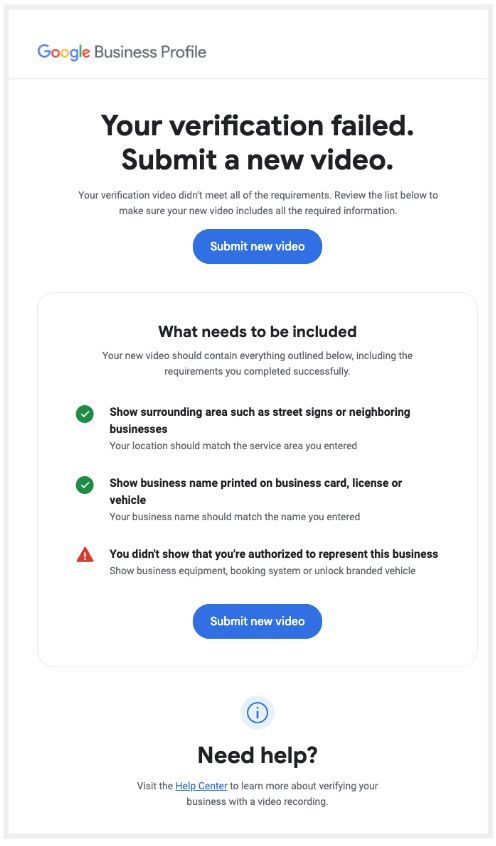
Depending on the verification method, you receive an email from Google to alert you of the failed verification and what you need to change before attempting verification again. You may need to fix issues, provide additional information, or re-verify your business through a different method.
If verifying via video, you can review your video recordings before submitting for verification. Check against Google’s guidance if you’re showing everything they’ve asked for, and re-record if not. You may get a notification to ‘Review Issues’; follow the instructions to resubmit another video.
What to do if you have “No More Ways To Verify”
Sometimes you may see a message on your GBP admin console saying there are “no more ways to verify”. This means that Google couldn’t confirm your details through the available methods, or your attempts to verify repeatedly failed.
If this happens, the best thing to do is contact Google support—there should be an option on screen you can click to take you there.
Fill out the form with the profile affected and that you have no more ways to verify.
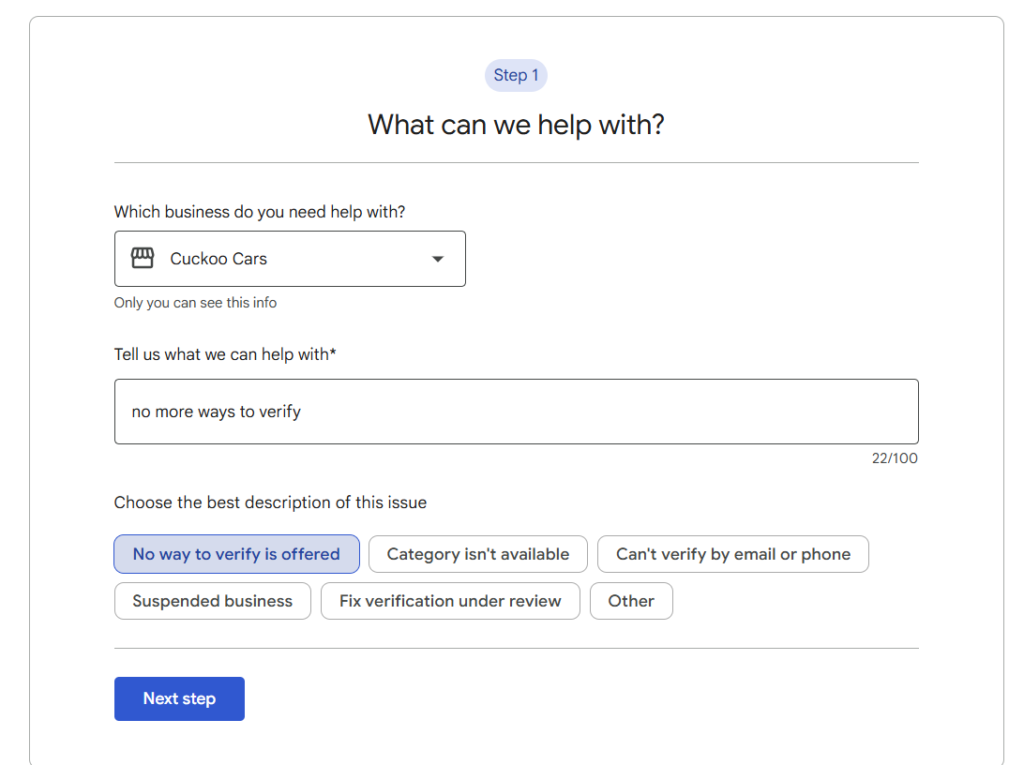
Follow the instructions and click to contact the support team (again!), and you’ll presented with a long form with information to provide such as:
- Photos of signage or landmarks outside your building
- Recent utility bills
- Your website URL
The support team should be in touch in the next few days with next steps, which may include a video call with a support representative.
Why did Google ask me to verify my business again?
If your GBP was already verified and you’ve suddenly received an email asking you to verify again, or seen ‘Get verified’ return in the GBP dashboard, you’re not alone. Google often asks businesses to re-verify their business details, especially if your business details have changed recently.
This could be triggered by changes to your business name, address, category, or opening hours. In some cases, it can also happen without any obvious trigger, as part of Google’s broader efforts to keep listings accurate and combat spam.
What about that “Updates to how we verify your business details” email?
In March 2026, many business owners received an unfamiliar email from Google with the subject line “Updates to how we verify your business details”. In this, Google announced they “may occasionally reach out using automated messages via call, text, or WhatsApp to the verified phone number on the Business Profile.”
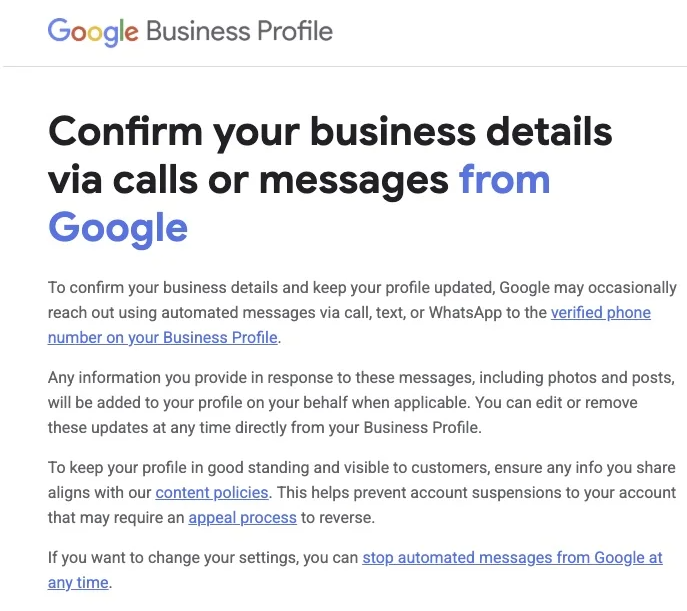
There are a few practical things to be aware of. First, the phone number on your listing matters more than ever. Google will contact the verified number on your profile, so this needs to be a number that is closely monitored. It’s unclear how this will work for businesses with automated phone trees, where an automated message from Google may not be able to get through. Google hasn’t yet provided guidance on this, so it’s worth keeping an eye out for updates if this applies to you.
It’s also worth knowing that any information you provide in response to these messages could be published directly to your Business Profile, including photos and videos. While these can be removed, make sure anything shared in responses is professional and ready to be seen by the public.
If you manage GBP listings for clients and get this email, flag the change to them now. An uninformed client or junior member of staff who receives one of these calls and responds without thinking could inadvertently update their live listing with incorrect information. Or, if the message gets ignored or missed, the GBP could risk being suspended. Make sure the contact number on each listing is current, actively monitored, and that whoever answers knows how to handle verification calls or messages.
Getting verified is more than worth your time, you should do it straight away
Verifying your Google Business Profile listing can take some time but is necessary to manage and use your Google Business Profile. It’s advisable to start the Google verification process as soon as you can as verification can take a while to complete, depending on the verification options presented for your business.