





FREE GOOGLE ID AND REVIEW LINK GENERATOR
Free Google Review Link generator and Place ID finder
Sign up for a 14-day free trial
Get more reviews with Reputation Manager
How to use our free Google Review Link Generator and Google ID finder
Enter your business name
Start entering your business name or address. You’ll be shown a list of businesses. Select the location you want to use.
You will need a Google Business Profile for it to appear.
Check you have the right location
Double-check your details are correct, then click ‘Fetch links and IDs’.
You can only use this 10 times a day, so make sure you’re searching for the right location.
View your information and copy a link
You’ll be given a dashboard that summarises the information on your Google Business Profile.
You can click ‘copy’ on any of the links at the top to either view your reviews, ask for more reviews, or see your GBP in the Google search results.
Copy and paste your Google ID
Further down, you’ll see the three different types of ID. You can copy and paste these.
The three Google IDs are:
- Ludocid
- Place ID
- FID
What to use your Google Review link for
Basically, anywhere you think a customer could leave a review, you can share it. You can use your review link to generate a QR code, too.

What is Google Place ID?
Ludocid vs FID vs Place ID
Ludocid
The Ludocid, sometimes referred to as the ‘CID’, is a unique ID that Google assigns to a specific business location in order to identify it within its systems.
Ludocid can be used:
- Within Google search URLs to return the Knowledge Panel for that specific business
- Google Maps to view a specific business
FID
The FID is a unique ID that relates specifically to reviews that Google holds about a specific business.
It has fewer practical uses than Ludocid and Place ID, but is still useful.
FID’s primary use is:
- In combination with the Place ID to generate a ‘write reviews’ or ‘read reviews’ URL
Place ID
Google Place ID is a unique identifier that Google assigns to your business. Google uses this unique ID to identify your business within its Google Maps and Google Places database.
Use Place ID to:
- Retrieve extensive information about a business
- pull all the information in your Google Business Profile
How to ask for reviews
- Be polite
- Let reviewers know how long a review will take
- Ask specific questions
- Don’t wait too long before you ask
- Get your whole team involved

Avoid review gating
Review gating is the practice of asking only happy customers for reviews or allowing only positive reviews to be visible on its owned assets.
It’s against Google’s guidelines and the law.

Frequently asked questions

Place ID is used by various APIs, including Routes API, Directions API, Directions Services API, Places API, Maps Embed API, and Maps URLs. The Places API is the most common use for your Place ID. This allows Google to return a wealth of useful information about your business, including the business name, address, opening hours, URL, and contact information.
A second important use relates to reviews. Your Google Place ID can be used to create a URL for a page where you can request customer reviews and show all previous reviews gathered in one location.
Developers can use the Place ID in conjunction with Google APIs such as the Places API and the Maps APIs. This allows the business location to be referenced accurately in Maps.
The Place ID can also be used with other APIs to assist with tasks such as generating directions, origin information, and waypoints.
You can search by Place ID in Google Maps APIs to get more information about a business. This includes details such as telephone number, street address, and opening hours.
Once you have the Place ID, it can also be used to create a page to display all the reviews for that business or to allow customers to leave new reviews. To do this, the ID needs to be used within the URL structure. Google will then convert that URL into a new page using the review ID (FID) and the Ludocid, which pulls up the knowledge panel for that business.
See the Place ID in action for reading reviews and writing reviews.
Step 1: Visit the Google Maps Platform
Open up a browser window and navigate to the following URL: https://developers.google.com/maps/documentation/places/web-service/place-id. This is a guide to the Web Services Places API tool. Within it, you’ll find a Google Place ID finder.
Step 2: Locate the Google Maps Place ID lookup tool
Scroll a short way down the page, and you’ll see a Google Maps box with a search bar at the top of the map.
Step 3: Input your business address
Begin to type in your business address. You’ll see a dropdown list appear as you begin entering your business name or location. Select the correct address from the list provided.
Step 4: Make a note of the Google Place ID
The Google Place ID will now appear on the screen. You can copy this ID and save it for future reference. The Place ID may not look exactly like the example shown above. Some IDs are shorter, and others may be longer.
If you still can’t find your Google Place ID, here are a few things to try.
Confirm Google Business Profile verification status: First, check that you have verified your Google Business Profile for the business you need to locate the Place ID. If your listing hasn’t been verified, you may not be able to find its Place ID.
Switch to another Place ID finder tool: If you can’t find your Google Place ID using the first method outlined above on the Places API, try using a different tool.
Try a different API: If the Places API isn’t working, you could also try to find your Place ID using another API, such as the Text Search Option or Nearby Search API.
Try Google Search: If the previous methods still haven’t resulted in your Places ID being located, try this method using Google Search:
Step 1: Open a new browser window, head to Google, and type in your business name.
Step 2: Verify the knowledge panel appears on that page.
Step 3: Right-click and then select ‘View Page Source’.
Step 4: You’ll now see a page of HTML code. Open the ‘Find’ search box by CTRL + F on your keyboard. Enter lu-rap-thank-you-dialog in the search box.
Step 5: Your Places ID is found directly after the phrase lu-rap-thank-you-dialog
Unlock your potential with our other free tools
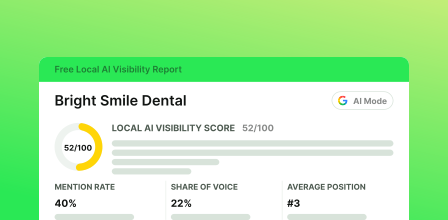
Local AI Visibility Checker
See if AI is recommending you
Check your business against ChatGPT and Google AI Mode. Get your Local AI Visibility Score and see which local businesses you’re up against.
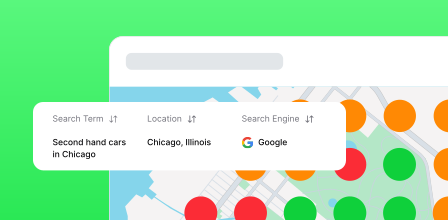
Local SERP Checker
See what customers see in search
View Google search results from any location to see how your business appears to nearby customers, and how you compare to local competitors.
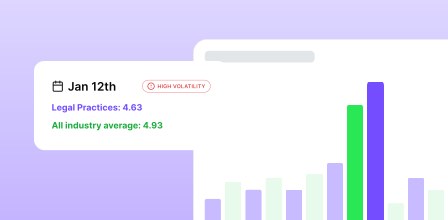
Rank Fluctuation Monitor
Stay on top of algorithm changes
Be the first to know when Google’s local search algorithm shifts. Daily, weekly, or urgent-only alerts on local rank fluctuations.
Try the BrightLocal platform free for 14 days
Track rankings, manage listings, and grow your reputation from one place.
All features. Unlimited access. No card required.